




 Technology31 May 2026
Discover the Hidden Photo Editing Feature on Your iPhone
Uncover your iPhone's photo editing shortcut that lets you copy and paste edits across multiple images for quicker adjustments.
Unveiling a Time-Saving Feature in Your iPhone Camera
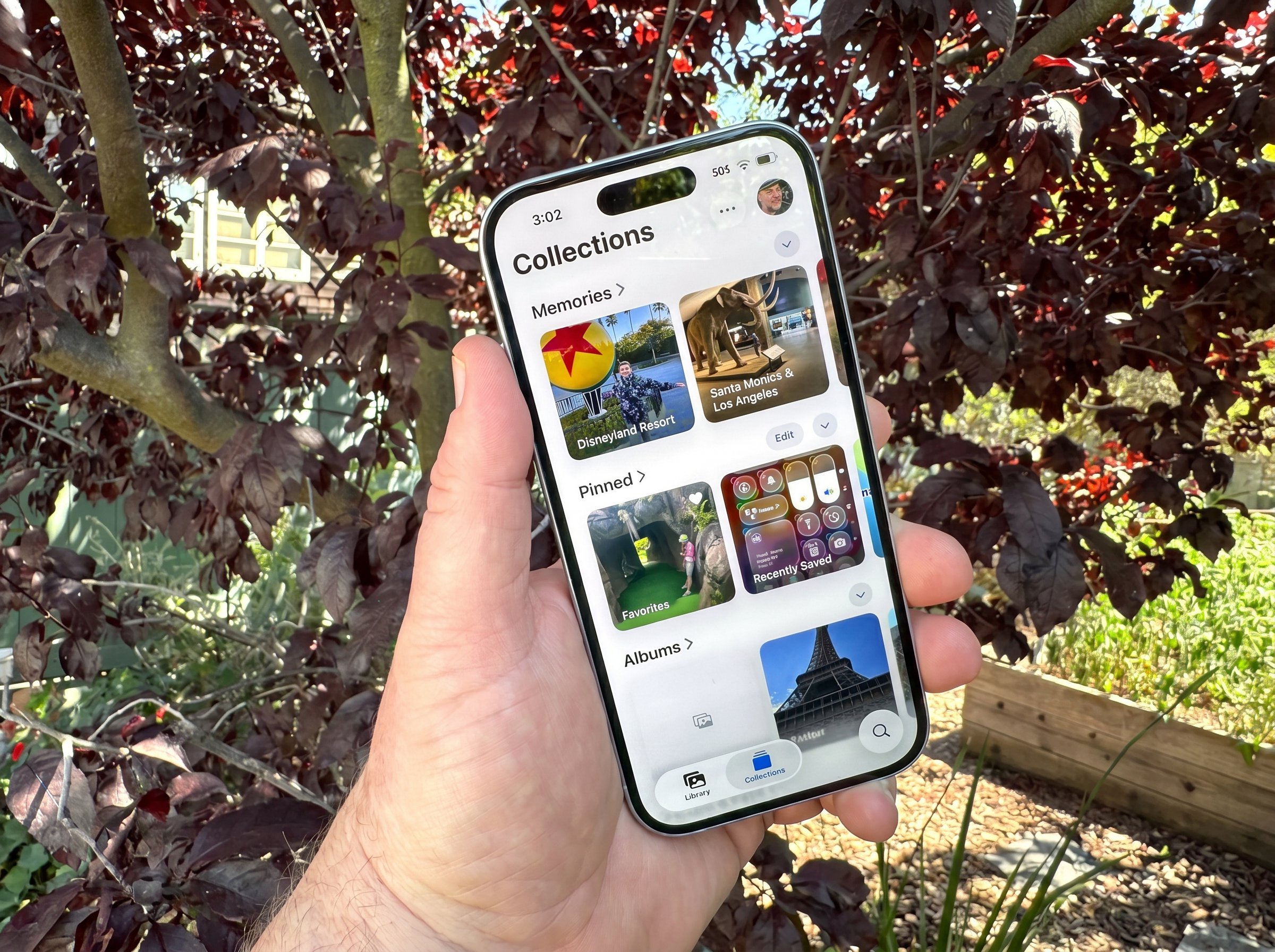
As an avid iPhone user for over a decade, I thought I had mastered every hidden feature within the device’s camera and editing tools. However, a recent discovery has shown there’s always more to learn. The iPhone's Photos app includes a remarkable yet underutilized feature that allows users to copy edits from one photo and paste them onto others, thereby significantly speeding up the photo editing process for those who often work with multiple images containing similar adjustments.
A Hidden Gem in Photo Editing
Editing photos can often feel like a tedious task, especially when each image requires the same color correction, lighting tweaks, or cropping. The capability to copy and paste edits not only saves time but also enhances overall productivity. This specific feature, which Apple seems to have tucked away in plain sight, allows users to apply the same adjustments to a batch of photos with minimal effort.
How to Copy Edits from a Photo
If you're intrigued by this feature, here’s a simple guide to get you started:
- Open the Photos app on your iPhone and locate an image that you have previously edited to your satisfaction.
- Tap the three dots icon (⋯) located in the top-right corner of the screen.
- From the menu that appears, select "Copy Edits". You also have the option to toggle off any specific adjustments you do not wish to carry over, giving you flexibility in your editing process.
- Tap "Copy", and your edits are now ready for use on other photos.
Applying Edits to Multiple Photos
After copying your desired edits, applying them is just as straightforward:
-
For a Single Photo: Open the target photo, tap the three dots (⋯), and select "Paste Edits". The changes will be visible immediately.
-
For Multiple Photos: In your photo library, tap "Select" in the top-right corner. Choose your desired photos either by selecting them individually or dragging your finger across multiple thumbnails. Once you’ve made your selections, tap the three dots (⋯) in the bottom-right corner and then select "Paste Edits". Every chosen photo will receive the same identical adjustments all at once.
Final Thoughts
The discovery of the copy and paste edits feature has transformed my approach to photo editing on the iPhone. If you are someone who frequently edits multiple images, this feature can drastically reduce the time spent on ensuring uniformity across your edits. It’s all about efficiency and enhancing the overall user experience with one of our most critical device features.
Do you have any tips or tricks for maximizing your iPhone's features? Don’t hesitate to share them in the comments!
Popular news
New York has declared a disaster emergency over rising measles cases, especially among under-immunized populations, with 108 confirmed cases.




Subscribe to
our news
Get the most important updates and top stories in your inbox.